
How to review a supplier invoice in Tenet, step by step
A walkthrough of reviewing one supplier invoice in Tenet: how it arrives from QuickBooks, the Inbox summary panel, reading an issue, comparing the document, deciding, and emailing approvers at once.
From a bill saved in QuickBooks to a recorded decision: where to click, what each screen shows and what each button does.
- A bill saved in QuickBooks with its PDF usually appears in the Inbox within a minute.
- Select a row for a summary panel with the open issues, Approve and Reject; choose View for the full screen.
- A quantity issue shows the result first, then the figures the check used and what to review.
- The document opens fitted to its panel; zoom, fit the page or drag the divider for more room.
- Send approval email now emails approvers at once. Dark mode and the help centre are in the top bar and sidebar.
In this guide
This is a walkthrough of one supplier invoice in Tenet, from the moment it arrives to the decision. It uses the screens as they are after the November 2026 update, and the same example throughout: an invoice that bills more units than the warehouse accepted.
Select the invoice in the Inbox to open its summary panel. Read the issue: the result is first, then the figures behind it. Choose View to compare the supplier's document with the purchase order and goods receipts. Then correct a value, upload the missing document, reject, or approve with a reason. To get waiting invoices to approvers straight away, press Send approval email now.
- 1The invoice arrives
Uploaded, emailed in, or read from a bill saved in QuickBooks.
- 2Select it in the Inbox
A summary panel opens with the amount, the open issues and the documents on file.
- 3Read the issue
The result first, then the figures the check used.
- 4Compare the documents
View opens the invoice, purchase order and goods receipts beside the checks.
- Decide
Approve, reject, or approve anyway with a reason. The decision is recorded.
1. The invoice arrives
Invoices reach Tenet by upload, by email, or from QuickBooks. If Bills entered in QuickBooks is on under Integrations, there is nothing to send: save the bill in QuickBooks with the supplier's PDF attached. QuickBooks notifies Tenet, which reads the company's purchase orders and unpaid bills a few seconds later, so the invoice is usually in the Inbox within a minute.
- No PDF yet. The bill is listed as waiting and picked up once a PDF is attached.
- Purchase orders are read first, so a bill copied from an order raised minutes earlier still finds its order.
- A backstop. Tenet also reads QuickBooks every hour, and Read bills now reads it on demand.
2. Open the summary panel
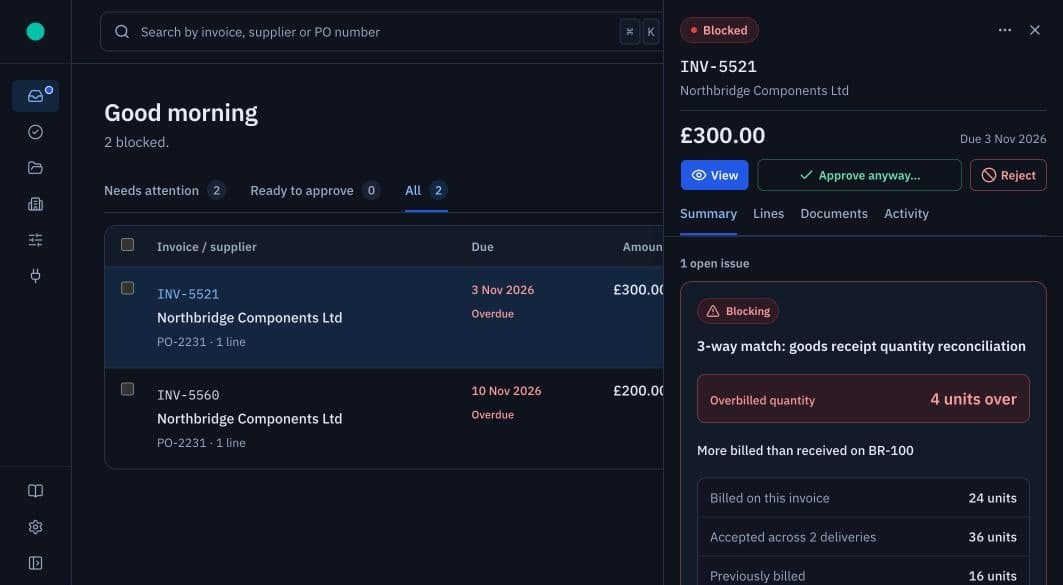
The Inbox has three tabs: Needs attention for invoices with open issues, Ready to approve for invoices that passed their checks, and All. Select a row and a panel opens at the side.
- At the top: the status, the supplier, the amount and the due date, with View, Approve and Reject.
- Four tabs: Summary, Lines, Documents and Activity.
- To close it: press the close button or click anywhere outside the panel.
3. Read the issue
Each open issue is a card. For an invoice that bills more than was received, the card leads with the result in a coloured band, here 4 units over. The band is red when the issue blocks approval and amber when it is a warning.
Under the band is a short table of the figures the check used:
- Billed on this invoice: the quantity the supplier is charging for.
- Accepted by the warehouse: the quantity on the goods receipts, with the receipts named.
- Previously billed: what earlier invoices on the same order already charged.
- Available to bill: accepted, less previously billed.
A What to review list follows, with anything else the check reported, such as units rejected at inspection. These are the check's own figures; nothing is estimated. Other kinds of issue, such as a price above the order or a VAT difference, keep their exact wording.
4. Compare the documents
Choose View. The full screen puts the checks on one side and the document on the other, with a tab for the invoice, the purchase order and each goods receipt.
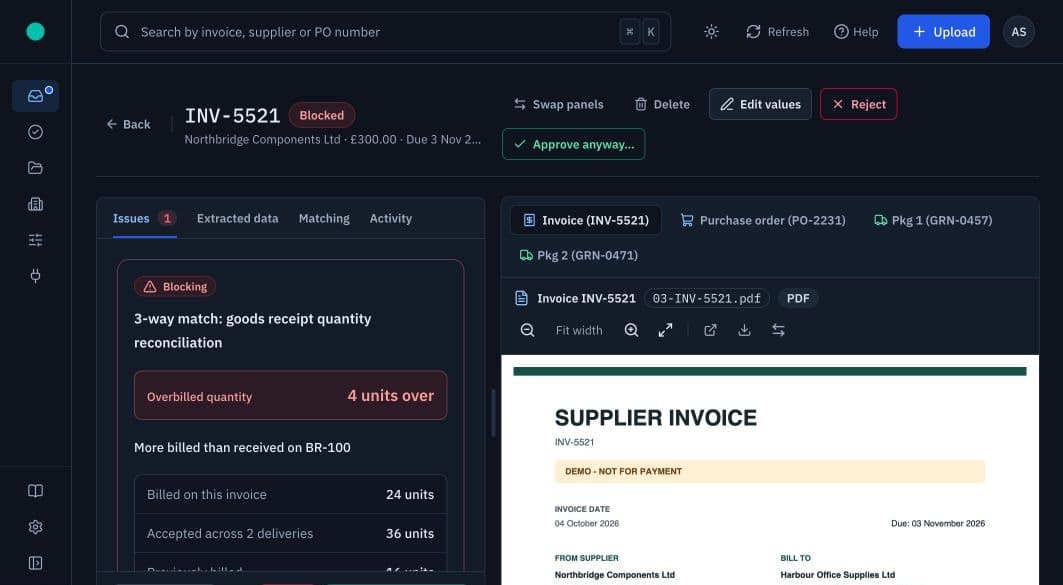
- Fit. The document opens fitted to the width of its panel. One button switches to the whole page.
- Zoom. From 50% to 180%, with the buttons above the document.
- More room. On a desktop, drag the divider between the two sides, or focus it and use the left and right arrow keys. Double-click resets it.
- Swap panels puts the document on the other side.
- The original file can be opened in a new tab or downloaded from the same toolbar.
5. Decide
- A value was read wrongly. Choose Edit values, correct it, and re-check the invoice.
- A document is missing. Upload the purchase order or goods receipt; the issue card links to the upload.
- Nothing has been recorded as received. Choose Record what arrived, enter the quantity that came on each line and how many you refused, and the invoice is checked again.
- The invoice is wrong. Choose Reject and give the reason.
- The invoice is right. Choose Approve. If an issue is still open, the button reads Approve anyway and asks for a reason.
Every decision is recorded in the invoice's Activity tab with the person and the date. For a bill that came from QuickBooks, the decision is also written into the bill's memo there.
6. Get it to the approver now
If someone else approves, they are emailed. The approval email goes out hourly and includes each invoice at most once a day. When that is too slow, an admin or approver can press Send approval email now, above the Inbox list beside the sort menu.
- Each approver gets one email listing what is waiting for them, with a link for each invoice.
- They approve or reject from the link, with the invoice and the purchase order in front of them.
- Anything emailed in the last five minutes is left out, so a second press sends nothing new.
Two things that make the work easier
Dark mode
Press the sun or moon button in the top bar to switch between light and dark. In Settings, under Appearance, you can also choose Use device setting. The choice is saved on that device, and PDF pages keep their original colours.
The help centre
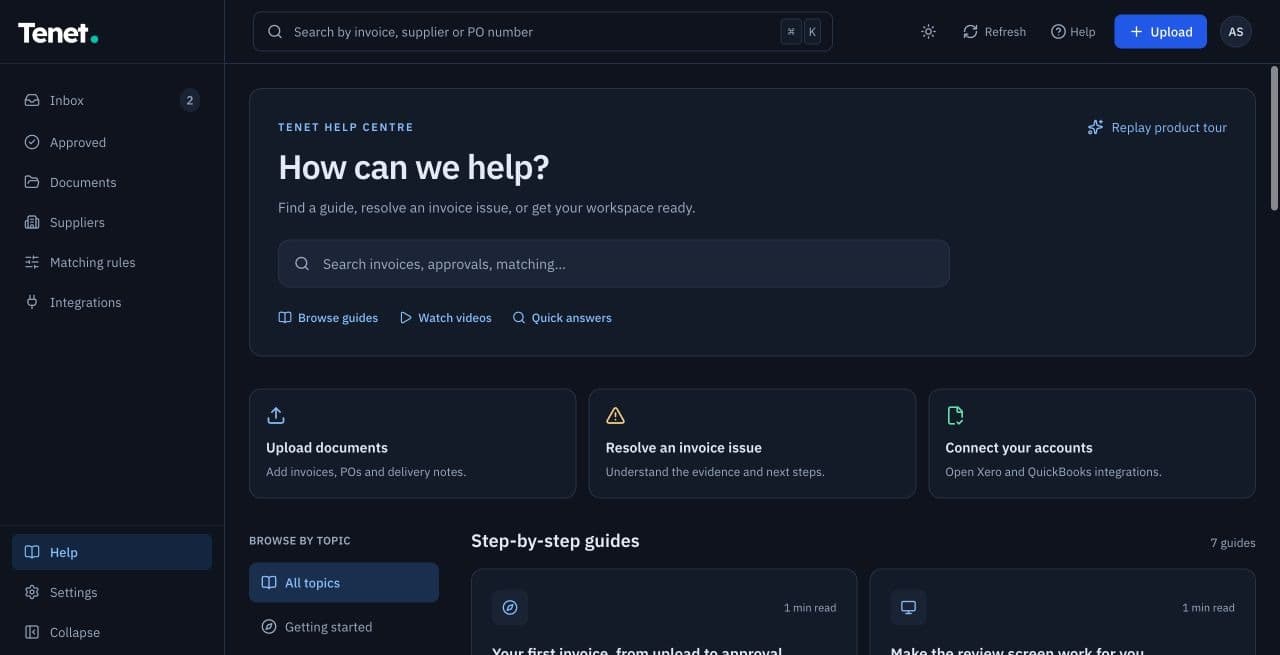
Choose Help in the sidebar. Search filters the guides, videos and quick answers together, and topics narrow the list. There are seven step-by-step guides, each with an Email support link at the end, and Replay product tour runs the product tour again.
Conclusion
The order is always the same: select the invoice, read the result and its figures, compare the documents, then decide and give a reason where one is needed. For how approvers decide from an email without a QuickBooks login, see approving QuickBooks Online bills by email. For how the quantity check works, see matching partial deliveries. For the warnings that come from a supplier's history, see what Tenet knows about each supplier.
Common questions
Do I have to open every invoice in full?
No. The summary panel in the Inbox shows the amount, the open issues and the documents on file, and has Approve and Reject. Open the full screen with View when you want the document beside the checks.
Can I approve an invoice that still has an open issue?
Yes, with Approve anyway, which asks for a reason. The reason is recorded in the invoice’s Activity with your name and the date.
Who can send the approval email at once?
Admins and approvers, from the Inbox. Requests emailed in the last five minutes are left out, so pressing the button twice doesn’t email anyone twice.
Is my dark mode choice shared with my team?
No. It is saved in the browser on the device you choose it on, so each person and each device can differ. PDF pages keep their original colours.
Tenet checks every invoice, matches it to POs and goods receipts, and holds exceptions for your team.