
Approve QuickBooks Online bills by email, without a QuickBooks login
Keep entering supplier bills in QuickBooks Online with the PDF attached. Managers approve from an email link with the invoice and PO side by side, and the decision is written back on the bill.
Keep keying bills into QuickBooks. Approvers decide from an email with the invoice and the PO in front of them, and the decision is written back on the bill.
- Bills keyed into QuickBooks with the supplier’s PDF attached are read every hour. Nothing is uploaded or forwarded again.
- Each invoice is checked and matched to the purchase order raised in QuickBooks.
- Approvers get a personal email link to the invoice and the PO, and approve or reject without a QuickBooks login.
- Who decided, when and why is recorded in Tenet and written into the bill’s memo in QuickBooks.
- The memo is a record, not QuickBooks’ own approval status, so pay only what Tenet shows as approved.
In this guide
- 1. Bills and their PDFs come from QuickBooks
- 2. Purchase orders come from QuickBooks too
- 3. Approvers get an email with the invoice and PO
- 4. Approve or reject without a QuickBooks login
- 5. Who decided, and when, is recorded
- 6. The decision is written back on the bill
- Setting it up
- What to know before you switch it on
- Conclusion
- Common questions
Plenty of finance teams already do the data entry properly. Every supplier invoice is keyed into QuickBooks Online as a bill with the PDF attached, and purchase orders are raised in QuickBooks too. Approval is where it breaks down. The managers who own the spend often don't have a QuickBooks login, and giving them one for a yes or no is more access than they need. So the PDF gets forwarded, the answer comes back in an email reply, and nothing on the bill says who approved it.
Here is a setup that fixes that without changing how bills are entered. It covers the six things such a process needs, from getting the bill and its PDF out of QuickBooks to putting the decision back on it, and the limits worth knowing before you switch it on.
Keep entering bills in QuickBooks with the supplier's PDF attached, and turn on Bills entered in QuickBooks in Tenet. Every hour, Tenet reads your unpaid bills and their PDFs, checks each invoice and matches it to the QuickBooks purchase order. Approvers get an email with a personal link to the invoice and the PO, and approve or reject there without signing in to QuickBooks or Tenet. Tenet records who decided, when and why, and writes that into the bill's memo in QuickBooks.
- 1Enter the bill in QuickBooks
As you do now: the supplier’s invoice as a bill, its PDF attached, the purchase order linked if there is one.
- 2Tenet reads it within the hour
The bill and its PDF. Nobody uploads or forwards anything.
- 3Checked and matched
The invoice is checked and matched to the purchase order from QuickBooks.
- 4The approver gets an email
With a Review and approve link for each invoice waiting for them.
- 5They decide from the link
Invoice and purchase order side by side, then Approve or Reject. No QuickBooks login.
- The decision is on the bill
Who decided, when, and any reason, in the bill’s memo in QuickBooks.
1. Bills and their PDFs come from QuickBooks
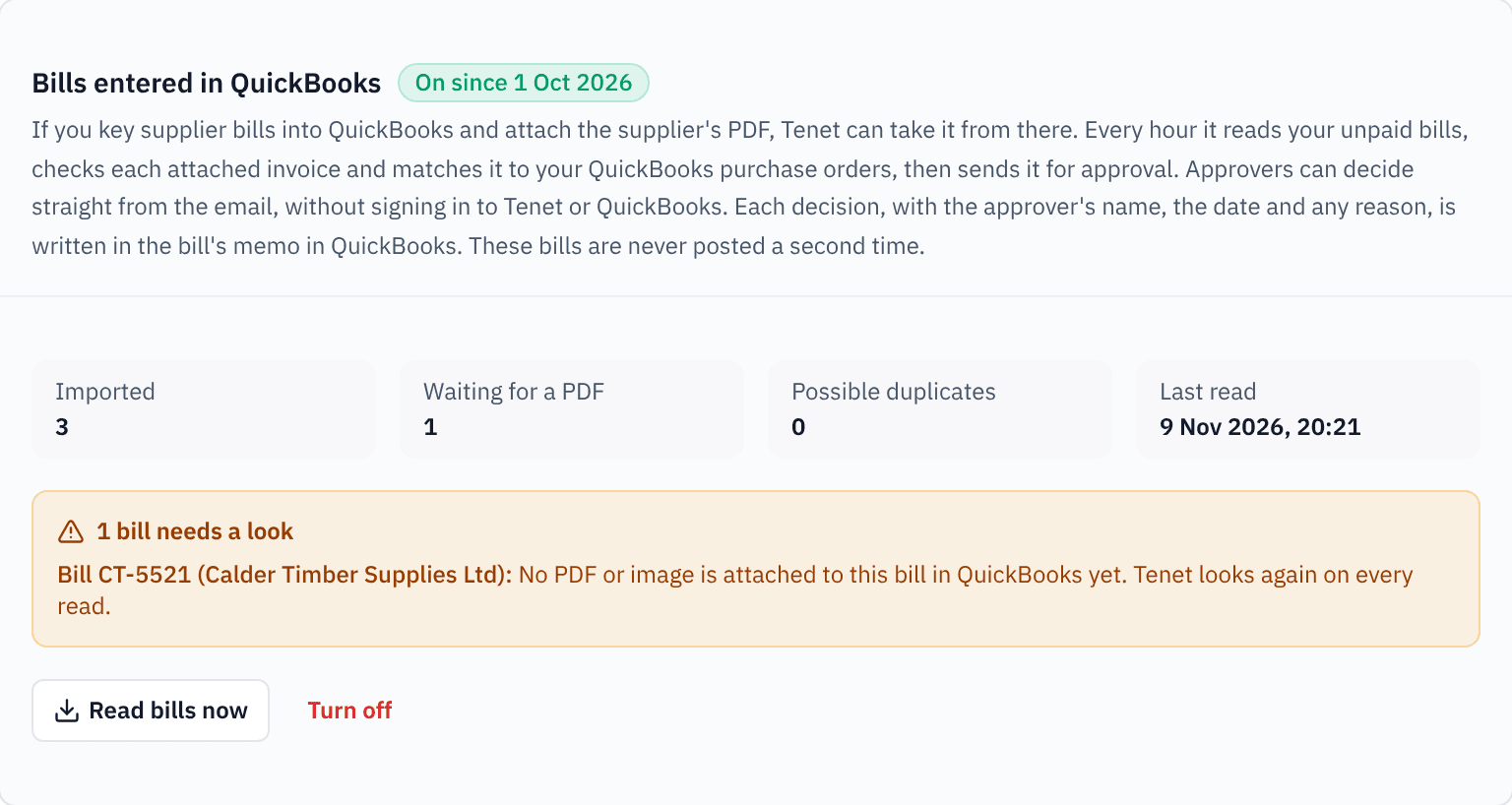
An admin turns this on once, on Tenet's Integrations page, and picks the date to start from: 30 days back unless you choose otherwise, and up to a year. From then on Tenet reads the unpaid bills dated from that day every hour, and whenever someone presses Read bills now. For each bill it takes the PDF attached in QuickBooks, or an image if there is no PDF, and reads it like any other invoice: lines, tax and totals.
Nothing is uploaded or emailed a second time. A bill with nothing attached yet is listed as waiting and picked up on the first read after its PDF is added. Paid bills are skipped. If the same PDF is attached to two bills, the second is flagged as a possible duplicate, naming the first; if the invoice was already emailed into Tenet, the existing invoice is linked to the bill instead of being entered twice.
2. Purchase orders come from QuickBooks too
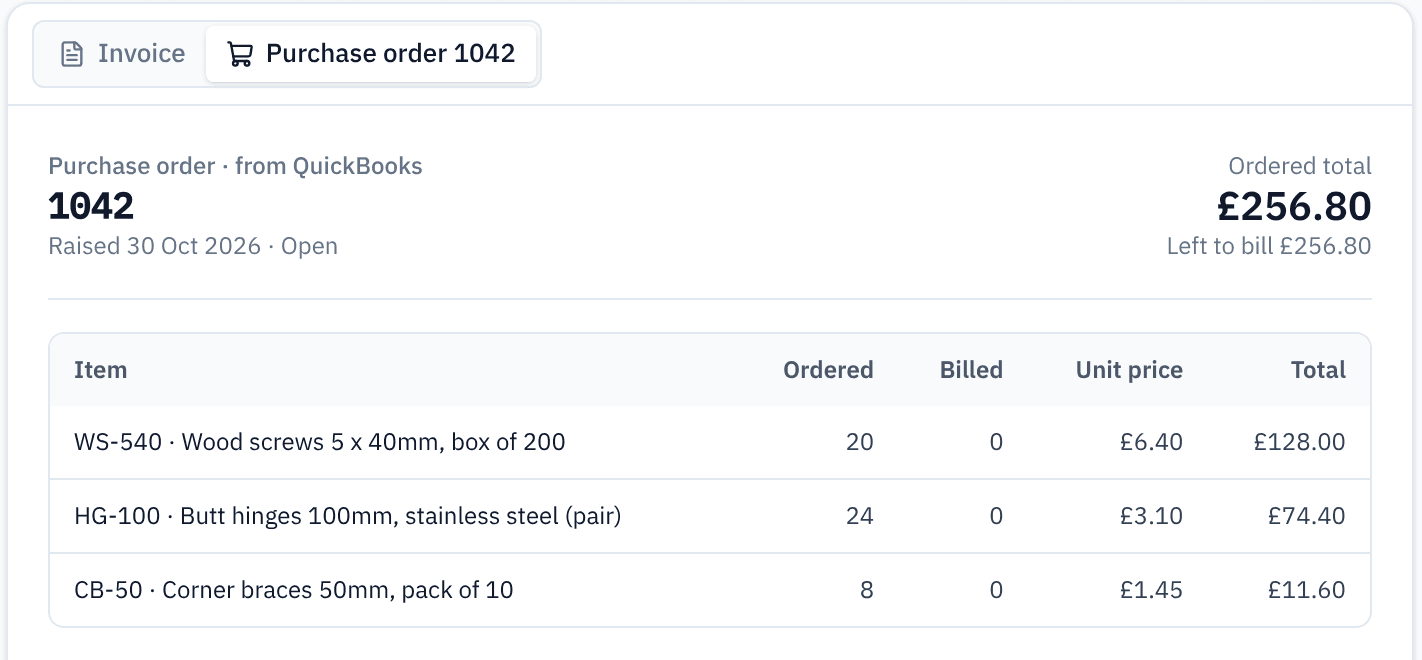
Purchase orders raised in QuickBooks are read every hour as well, from the last 12 months, with their lines, quantities and prices. QuickBooks Online has purchase orders on the Plus and Advanced plans (Intuit). Tenet takes the PO number from the invoice or, if the supplier didn't print one, from the bill's link to the purchase order in QuickBooks. Then it matches the invoice against the order: the same items, the agreed prices, and no more than was ordered and not yet billed.
Tenet doesn't read QuickBooks item receipts yet, so set its matching rules to 2-way (invoice to purchase order) unless you'll give it delivery notes; otherwise every invoice shows a missing goods receipt as an open issue. If someone signs delivery notes, upload or email them to Tenet and the match becomes 3-way.
3. Approvers get an email with the invoice and PO
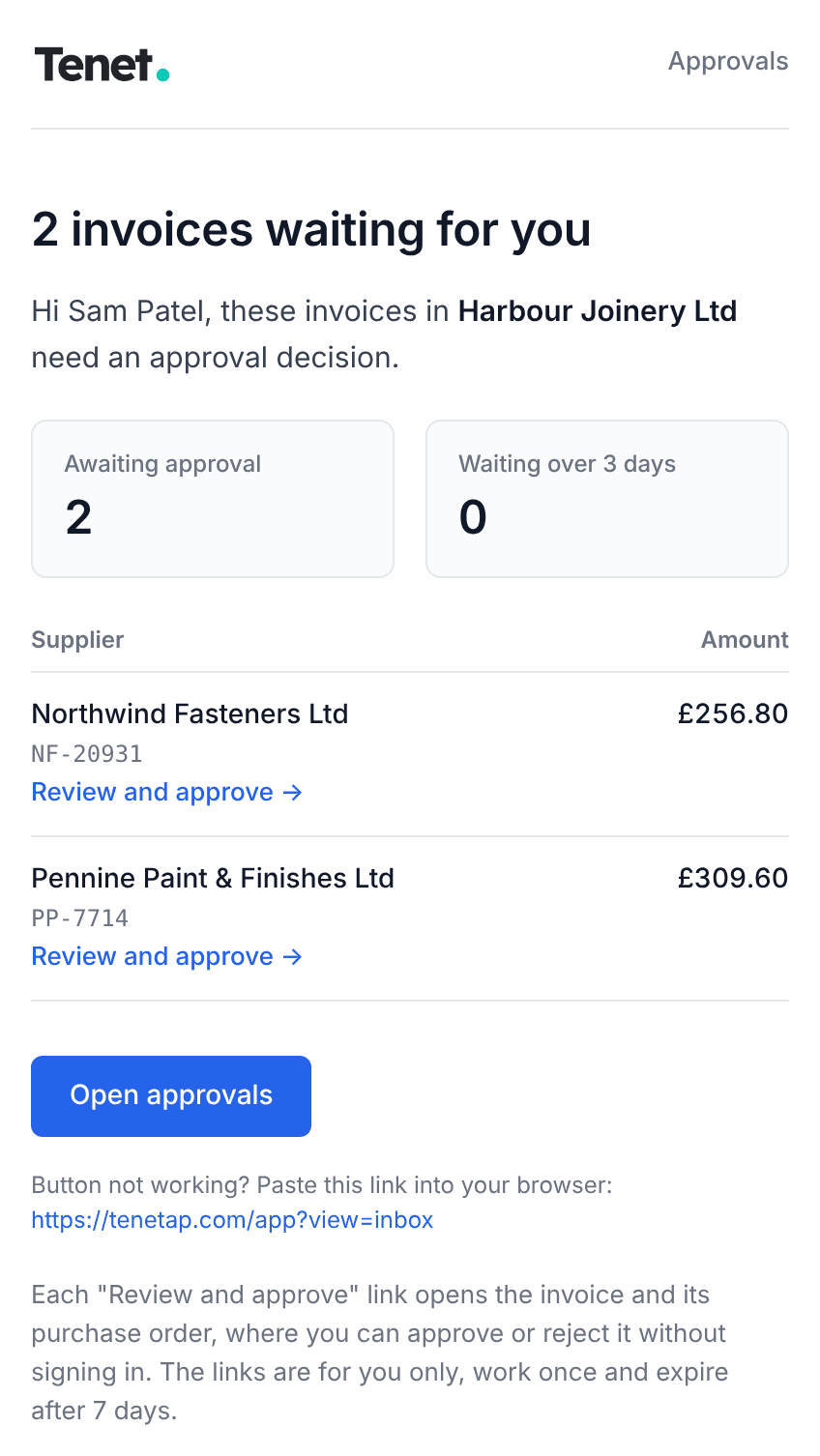
Tenet's approval email lists what is waiting for each approver. It checks every hour and includes each invoice at most once a day, so a batch of bills becomes one email, not twenty. Each invoice in it has a Review and approve link that belongs to that approver. When an invoice needs a second approval, the other approvers get their own link straight away instead of waiting for the next email.
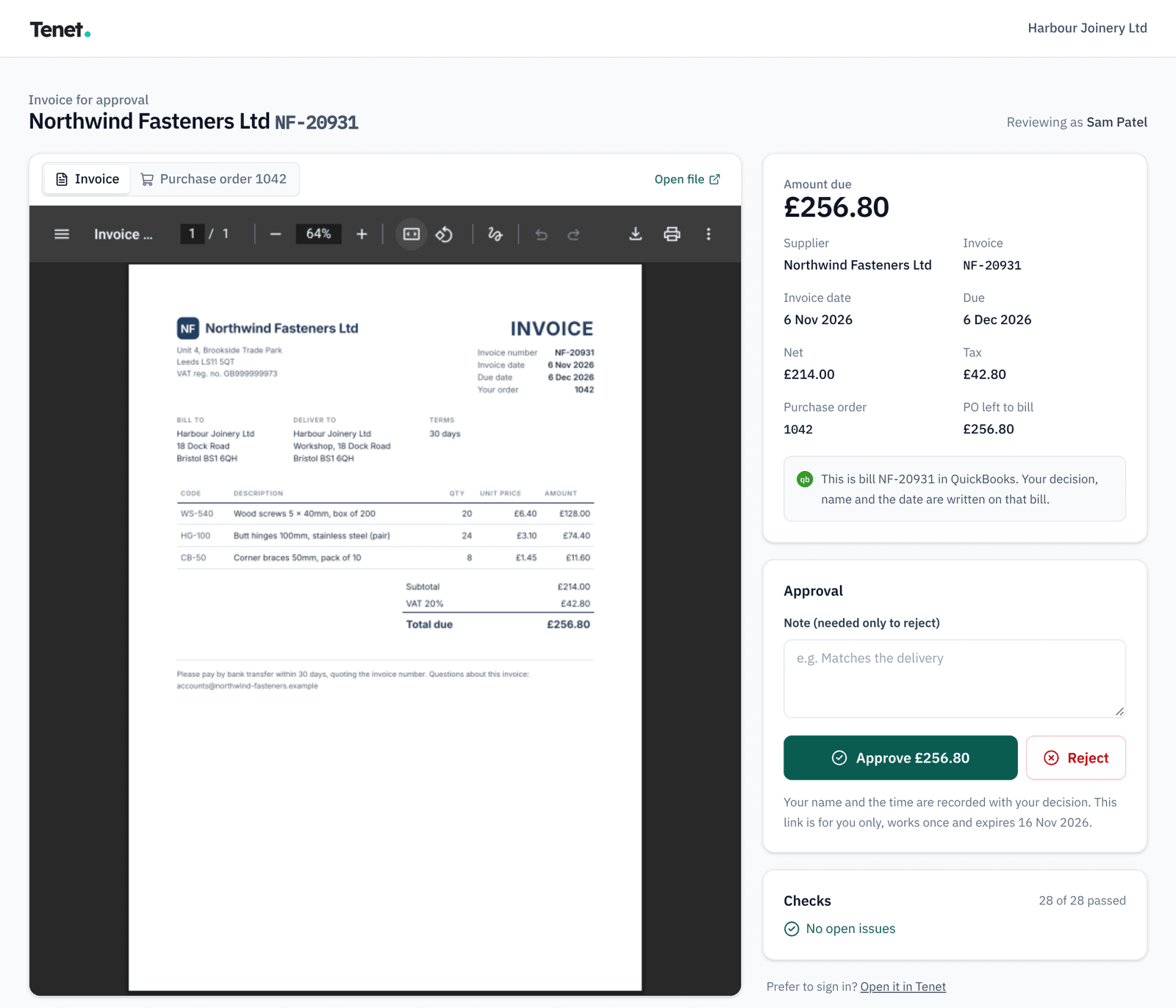
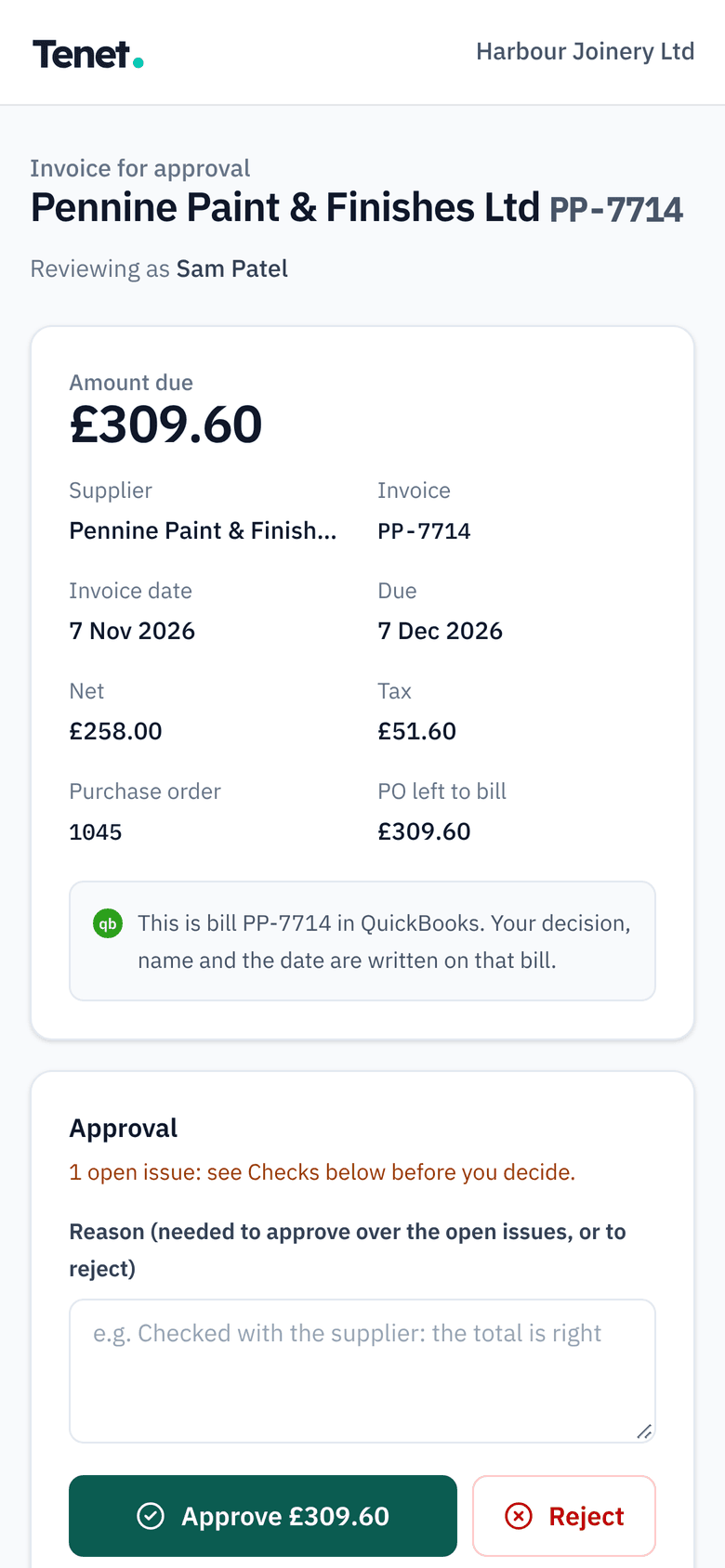
The link opens a page made for one decision. The supplier's invoice is shown as it was attached in QuickBooks, with the purchase order on the next tab. Beside it are the amount, the dates, net and tax, how much of the order is left to bill, the result of every check, and the bill's number in QuickBooks. If the bill keyed into QuickBooks has a different total from the invoice, the page says so, so the bill can be corrected before it is paid.
4. Approve or reject without a QuickBooks login
Approvers don't need a QuickBooks user. They need a Tenet account with the Approver role, which they set up once by accepting an emailed invite; after that the link is enough, with no sign-in to QuickBooks or to Tenet. Tenet plans include unlimited users, so every budget holder can be an approver at no extra cost.
The rules are the same as in the app. Rejecting needs a reason. An invoice with an open issue can still be approved, but only with a reason, and the page shows what the issue is first. If you require two approvers above an amount, the second must be a different person.
Because the link takes the place of a sign-in, it is treated like one. Each link is long and random, belongs to one approver and one invoice, works once and expires after 7 days, and Tenet stores only a hash of it. The approver's role is checked again when the link is used, so removing someone, or moving them to a role that can't approve, stops their links working. Opening the page decides nothing; only the buttons do.
5. Who decided, and when, is recorded
Each decision is recorded against the invoice: approved or rejected, the approver, the time, the reason if one was given, and whether it came through the email link or the app. Tenet keeps it in the invoice's audit trail next to the checks the approver saw, and writes the same who, when and why on the bill in QuickBooks, where anyone who opens the bill can read it. Six months later, “who approved this, and did they know about the issue?” has an answer.
6. The decision is written back on the bill
Straight after the decision, Tenet adds a short block to the bill's memo in QuickBooks, below whatever the memo already said. This is the memo of the bill in the screenshots above, after the approval:
Entered from the supplier PDF

[Tenet approval] Approved in Tenet
Approved by Sam Patel, 9 Nov 2026, 20:23 GMT via email
Each decision gets its own line. A reason given in Tenet follows a colon, as in “Approved by Sam Patel, 9 Nov 2026, 20:23 GMT via email: New supplier: VAT number and bank details confirmed by phone”. An invoice that needs two approvals reads “Waiting for approval in Tenet (1 of 2)” after the first, then both names. A rejection is written the same way, with its reason. Tenet doesn't create another bill or change the bill's amounts, lines or payment status. (Invoices that reach Tenet by email or upload work the other way: once approved, those are posted to QuickBooks as new bills, with the PDF attached.)
After the final approval, Tenet also compares the bill with the invoice. If the total, tax or currency keyed into QuickBooks differs from the invoice, the invoice is flagged so the bill can be corrected before it is paid, and if the bill was already paid in QuickBooks, Tenet says so. If QuickBooks can't be reached, Tenet tries again; if it still can't write, the approved invoice shows why, with a button to try again.
Setting it up
- Connect QuickBooks Online on Tenet's Integrations page, if you haven't already. Vendors, accounts, tax codes and purchase orders are read straight away.
- Turn on Bills entered in QuickBooks on the same page and choose the date to start from. Only an admin can, and the first read starts at once.
- Choose 2-way matching in Matching rules, unless you'll give Tenet delivery notes or goods receipts.
- Invite your approvers from Settings, under Team, with the Approver role. Each accepts the invite once.
- If you want two approvals on larger invoices, set the amount at which a second approver is needed (Match plan and above).
What to know before you switch it on
- The memo is a record, not a lock. It isn't QuickBooks' own approval status, and QuickBooks won't stop anyone paying a bill whose memo says it was rejected or is still waiting. Pay the bills Tenet shows as approved; its Approved list links each one to its bill in QuickBooks. QuickBooks Online Advanced and Bill Pay Elite have their own bill approval workflows, where approvers are users you add to QuickBooks and they approve inside it (Intuit). Tenet's note is separate from that status.
- One file per bill. Tenet reads the PDF that was attached to a bill first, or the first image if there is no PDF. If a bill also carries a delivery note, attach the supplier's invoice before it.
- Hours, not minutes. Bills are read every hour, and the approval email waits until an invoice has been waiting for an hour, so a bill keyed in the morning usually reaches the approver within two or three hours. Read bills now brings bills in at once.
- A long backlog takes a few reads. Tenet looks at up to 100 bills per read, so an early start date with hundreds of open bills is worked through over a few hours.
- Links are personal. Each works once, for one approver, for 7 days. If one expires, the next approval email brings a new one, or the approver can sign in to Tenet instead.
Conclusion
If your team already keys bills into QuickBooks with the PDF attached, approval doesn't need a QuickBooks login for every manager, a forwarded PDF or a second round of data entry. Turn on the bill import, choose 2-way matching unless you'll send Tenet your delivery notes, and invite your approvers. Each decision then lands on the bill it belongs to, with a name, a date and, where it matters, a reason.
For what to check before anyone approves a bill, see the QuickBooks Online supplier bill checklist. For keeping approvals moving, see why invoices stall in approval.
Common questions
Do approvers need a QuickBooks login?
No. They need a Tenet account with the Approver role, which they set up once by accepting an emailed invite. After that the link in the approval email is enough, with no sign-in to QuickBooks or to Tenet. Tenet plans include unlimited users.
Does Tenet post a second bill to QuickBooks?
No. A bill that was entered in QuickBooks is never posted again. Tenet adds its approval note to that bill’s memo and changes nothing else on it: not the amounts, the lines or the payment status.
How safe is a link that doesn’t need a sign-in?
Each link is long and random, belongs to one approver and one invoice, works once and expires after 7 days, and Tenet stores only a hash of it. The approver’s role is checked again when the link is used, and opening the page never decides anything. Anyone who has the link can use it, though, so approval emails shouldn’t be forwarded.
Can a bill need two approvers?
Yes. If you require a second approver above an amount (Match plan and above), the first approval is written to the memo as 1 of 2 and the other approvers are emailed their own link straight away. The second approval has to come from a different person.
What happens to a rejected bill?
The rejection and its reason are written into the bill’s memo. Tenet doesn’t delete, void or change the bill, so decide in QuickBooks what happens to it, for example voiding it or waiting for the supplier’s credit note.
Sources
- Set up and use bill approval and payment release workflows, Intuit QuickBooks
- Create and send purchase orders in QuickBooks Online, Intuit QuickBooks
Links checked 10 November 2026. Official guidance changes; the publisher's current page takes precedence over this article.
Tenet checks every invoice, matches it to POs and goods receipts, and holds exceptions for your team.
How Tenet does this: Approvals and audit trail.