
Supplier intelligence in Tenet: what it knows about each supplier, and how it uses it
How Tenet’s supplier page and Insights page work: on-watch suppliers, agreed prices, prices over time, what each supplier’s invoices printed, and the checks for new suppliers, changed bank details, changed tax IDs and price rises.
Every invoice adds to what Tenet knows about a supplier. The supplier page and the Insights page show it, and the checks use it before you pay.
- Each supplier has a page with its saved details, what its invoices actually printed, its purchase orders and a change history.
- An invoice is linked to a supplier only on a tax ID or the same name. A close name is proposed and a person confirms it.
- A first invoice from a supplier, changed bank details and a changed tax ID are each raised as a warning.
- A unit price above the price you agreed, or more than 10% above what the supplier charged recently, holds the invoice.
- A supplier with findings on 3 or more of its last 10 invoices is put on watch, and its invoices are never auto-approved.
- The Insights page counts what the checks found and the money at stake. Nothing is estimated.
- Only admins can edit or delete a supplier, and every edit is recorded.
In this guide
Most invoice checks look at one document. Some of the most useful ones need history: is this a supplier we've paid before, are these the bank details they always use, is this the price we usually pay? Tenet keeps that history on each supplier and uses it on every new invoice. This post covers where to see it, how to correct it and what the checks do with it.
Open Suppliers and choose a supplier. The page shows the details saved on the supplier, every distinct tax ID, address and bank account its invoices have printed, its purchase orders and a history of changes. It also shows whether the supplier is on watch, its findings for the last 12 months, the prices you agreed with it and how its prices moved. On each new invoice Tenet flags a first invoice from a supplier, bank details or a tax ID that differ from before, a price above the agreed price and a price rise. A flagged invoice waits for a person. The Insights page adds it up across all suppliers.
The Suppliers list
The Suppliers page lists every supplier with its invoiced total and how many of its invoices passed every check. A supplier invoiced in more than one currency is marked, and its totals are shown per currency. Inactive and on-watch suppliers are marked too. Admins also see Edit and Delete on each row. Choose a supplier to open its page.
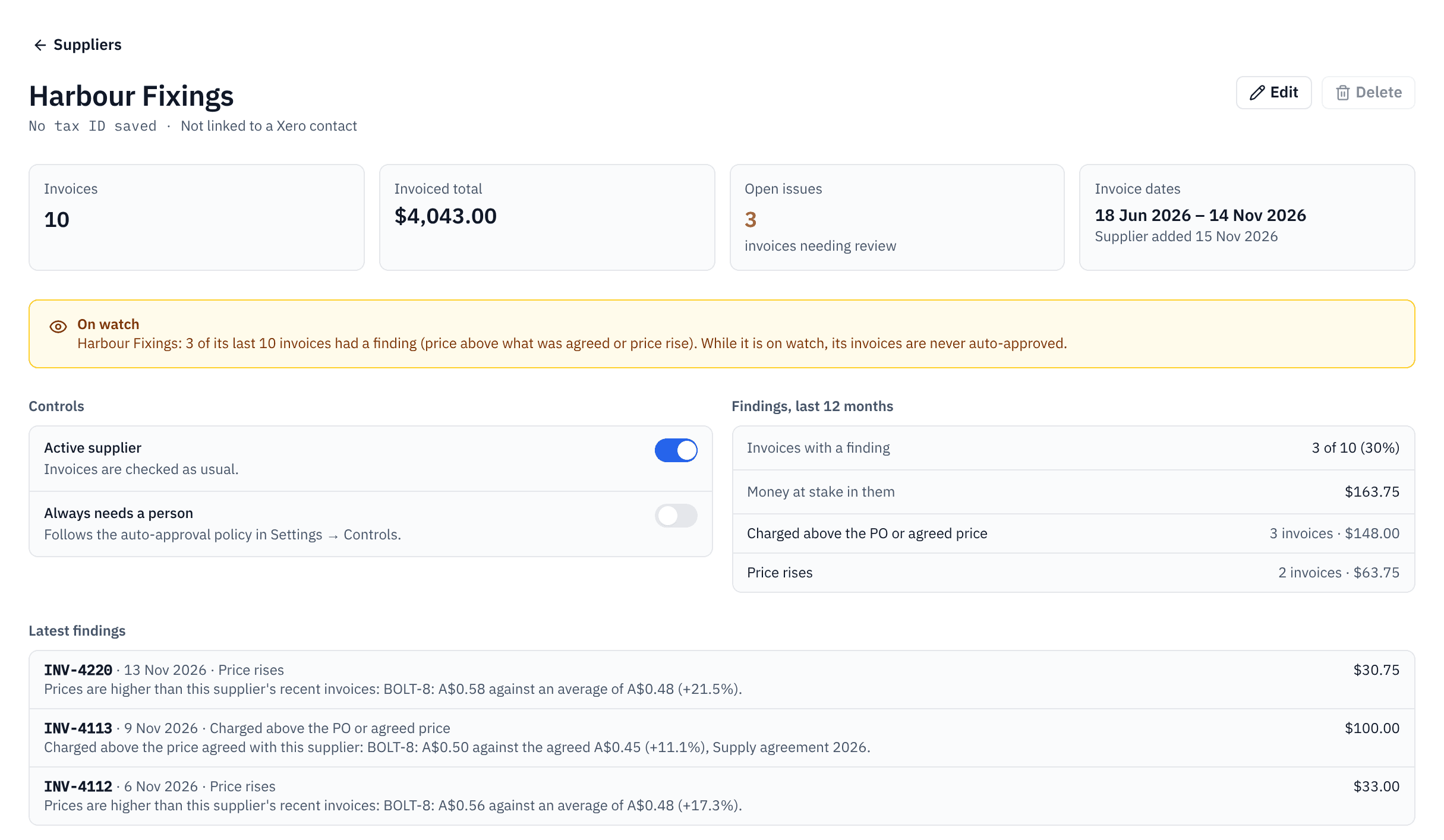
On watch, and the two supplier controls
A finding is a failed check about what the supplier sent: a duplicate, a price above the purchase order or the agreed price, a price rise, more billed than received, charges not on the order, or sums that don't add up. A check that failed because Tenet couldn't read something is not a finding.
- On watch. A supplier is on watch when 3 or more of its last 10 invoices had a finding. The page says why, and while it lasts the supplier's invoices are never auto-approved.
- Active supplier. Switch it off for a supplier you no longer use, and every invoice from it is held.
- Always needs a person. Switch it on to keep this supplier out of auto-approval whatever the policy says.
- Findings, last 12 months. How many invoices had a finding, the money at stake in them, the kinds of finding, and the latest ones with their figures.
Agreed prices
On the supplier page, save the prices from a contract, quote or price list. Every invoice line from that supplier is then compared with its agreed price, with or without a purchase order. A line above it holds the invoice and shows the overcharge in money.
- Choose Import price list and upload a spreadsheet (Template downloads the columns), or choose Add a price to type one in.
- Give a price a start and end date if it applies for a period, and a from quantity for a volume tier. Several rows for one item are tiers or successive periods.
- Note the source, such as the name of the supply agreement, so an approver can see where it came from.

The page also lists each item bought more than once in the last 12 months, with its first price, latest price, the change and the agreed price. And it lists remembered line pairings: when a supplier words an item differently from the purchase order and a person approves that invoice, the pairing is saved, so the next invoice worded the same way matches by itself.
The supplier page
Saved on supplier
This is the record Tenet compares invoices with: the tax ID, address, bank account and sort code or routing number, the linked Xero contact and its default account and tax type, whether a purchase order is required, and any price and quantity tolerances set for this supplier. Bank numbers are masked until you choose to show them.
Read from invoices
Under it is what the supplier's invoices actually printed. For the tax ID, the address and the bank details, each distinct value is listed once, with how many invoices carried it, how many of those were approved, and the latest invoice it appeared on.
- Saved marks a value that matches the supplier record.
- Differs from saved marks one that doesn't.
- Several values for one field are counted and flagged. That can mean a misread, a real change by the supplier, or an invoice that isn't from them.
- Save to supplier, for admins, copies a printed value onto the supplier record, which is the quickest way to fill in a supplier that came in with a name and nothing else.
The same value written differently, such as a tax ID with and without spaces, counts once.
Purchase orders and changes
The page also lists the supplier's purchase orders with how much of each has been billed, and a history of every change to the supplier: who made it, when, and what changed, with bank numbers masked.
How an invoice is linked to a supplier
- By tax ID or the same name. Names are compared without punctuation and with one spelling per legal form, so Acme Supplies Ltd., ACME SUPPLIES LIMITED and Acme Supplies are the same supplier.
- A close name is proposed, not linked. Bolt and Bolt Logistics, a swapped letter or a different legal form produce a suggestion. The invoice waits for a person to choose the supplier, and the history checks don't run against a guess.
- Teach it once. When you choose the supplier, tick the box to remember the printed name as another name for that supplier, and later invoices that use it link by themselves.
Other names can also be edited on the supplier: one per line, up to 20, such as a trading name. A name already used by another supplier is refused. Purchase orders follow the same rule: a close or missing supplier name holds the order until a person says who it is to.
The checks that use supplier history
New supplier
Raised on an invoice from a supplier with no earlier approved invoice in Tenet and no earlier bill in Xero. It is a prompt to confirm who they are before the first payment. It isn't raised in a new workspace that has no history to compare with yet.
Bank details changed
The account and sort code or routing number on the invoice are compared with the ones saved on the supplier. If none are saved, the last approved invoice is used. A difference is a warning showing the old and new account numbers, masked. Redirecting payments by changing bank details is a common invoice fraud, so confirm the change with the supplier on a number you already hold before paying.
Supplier tax ID changed
Raised when the tax ID on the invoice differs from the supplier's saved one. If the document was misread, Correct tax ID fixes the invoice. If the supplier really changed, an admin updates the supplier.
Price rise
Unit prices more than 10% above what this supplier charged in the last 180 days are flagged, naming the items with the earlier price, the new price and the percentage. The price is compared with the average and also with the earliest price in the period, so a rise of a few percent every month is caught. With Xero connected, unit prices on bills already in Xero count as earlier prices. An admin can change the limit and the period on the Matching rules page. This is separate from the purchase order and agreed price checks, and works for suppliers you buy from without an order.
The Insights page
Insights, in the sidebar, adds the findings up across every supplier. Choose 30 days, 90 days, 6 months or 12 months.
- At the top: invoices checked, how many had a finding, the money at stake, and the share approved without a person.
- How they ended up: rejected, waiting on a person, or approved anyway.
- What was found: by kind, such as charged above the purchase order or agreed price, price rises and duplicates, and by month.
- Suppliers with findings: invoices, the share with a finding, the money at stake and what comes up most often, with on-watch suppliers marked.
- Latest findings: each with the invoice, the figures and the outcome.
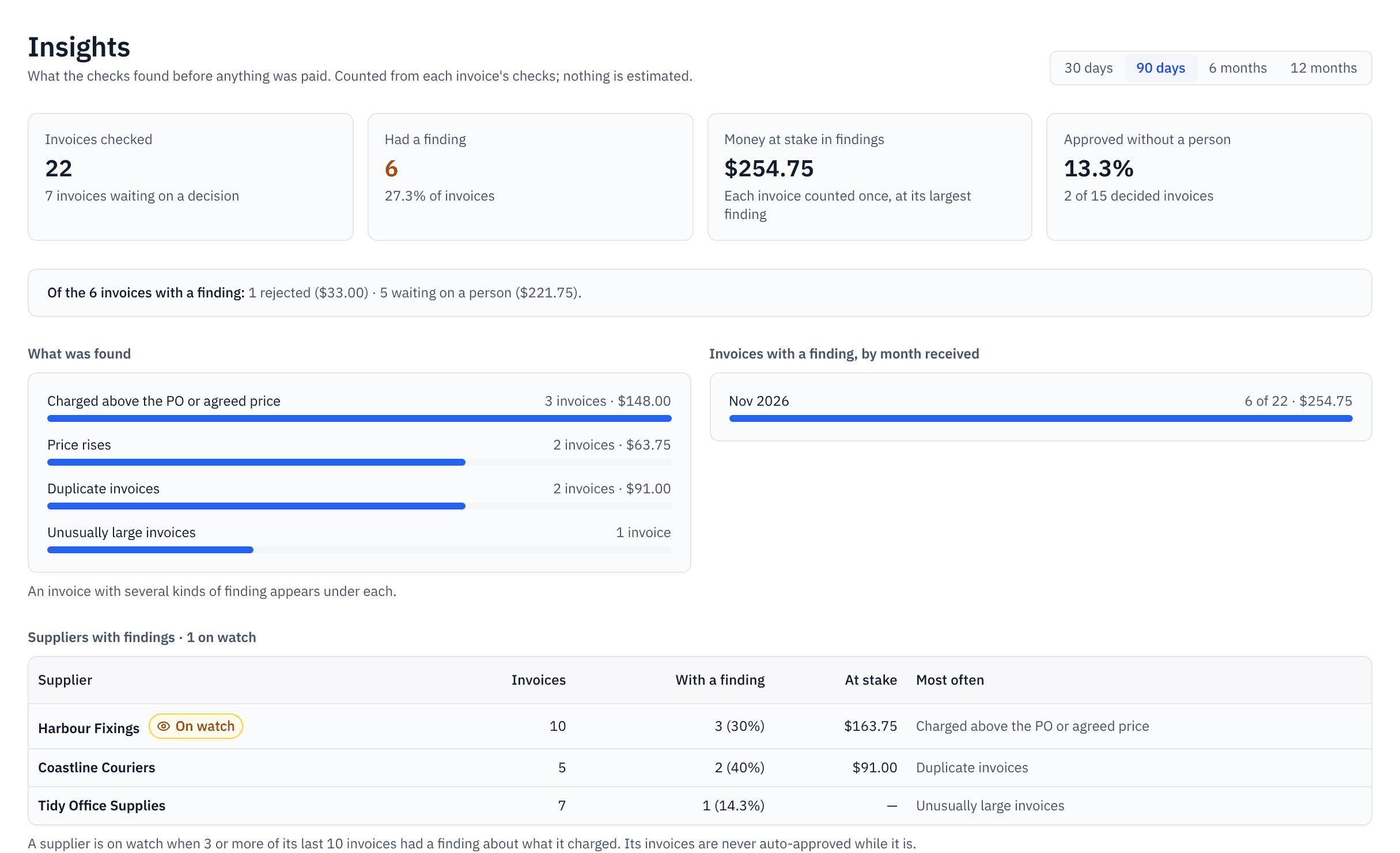
Two rules keep the money honest. An invoice counts once, at its largest finding, because a price above the order and above the agreed price is the same overcharge seen twice. And of a duplicate pair, only the copy that arrived later carries the amount.
Correcting or deleting a supplier
- Admins only. Other roles can read the supplier page but not change it.
- Edits are checked. A tax ID must have valid check digits, and a name or tax ID already used by another supplier is refused.
- Open invoices are checked again. Invoices from that supplier awaiting a decision are re-checked in the background after an edit.
- Past invoices keep the printed name. If a supplier is renamed, each invoice still shows the name as it was printed.
- Delete is guarded. A supplier in use by any invoice, purchase order, goods receipt, credit note, pro forma or rule can't be deleted, and deleting never touches Xero.
What it doesn't do
- It doesn't verify an account with the bank. The check is a comparison with what this supplier used before, not a confirmation of who owns the account.
- It doesn't reconcile supplier statements.
- It can't know what was agreed by phone. A price rise the buyer accepted last week is still flagged once; approve it with that as the reason.
Conclusion
The supplier page is worth five minutes for your largest suppliers: save the tax ID and bank details their invoices print, add the names they trade under and the prices you agreed, and the checks on every later invoice have something firm to compare with. For letting routine invoices through without a person, see how auto-approval works. For the review screens these warnings appear on, see reviewing a supplier invoice in Tenet, step by step. For how the same invoice gets paid twice, see how duplicate invoices slip through.
Common questions
Does Tenet check bank details with the bank?
No. It compares the bank details printed on each invoice with the ones saved on the supplier, or with the last approved invoice if none are saved, and warns when they differ. Confirming a change with the supplier, on a number you already hold, is still your step.
Will Tenet link an invoice to a supplier with a similar name?
No. It links only on a tax ID or the same name, ignoring punctuation and the legal form. A close name is shown as a suggestion and the invoice waits for a person to choose.
What happens to open invoices when I correct a supplier?
Invoices from that supplier that are still awaiting a decision are checked again in the background, so a corrected tax ID or name clears the warnings it caused.
Does deleting a supplier in Tenet delete the contact in Xero?
No. Deleting never touches Xero, and Tenet refuses to delete a supplier that any invoice, purchase order, goods receipt, credit note, pro forma or rule still uses.
Tenet checks every invoice, matches it to POs and goods receipts, and holds exceptions for your team.